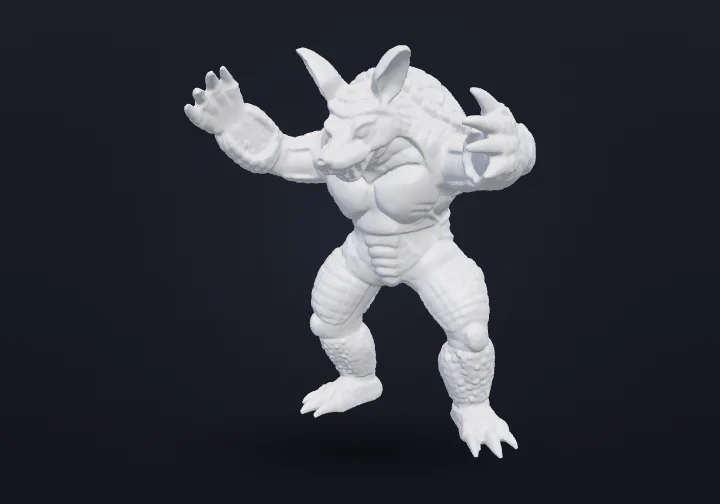
SnapSplit3D fixes non-manifold edges, open mesh seams, and inverted triangle faces locally in your browser using Watertight Auto-Heal (Fix Mesh / Repair mesh) at 0 Cloud Tokens. Supported STL, OBJ, and FBX files up to the 150 MB quick handoff limit stay on your device before exporting slicer-ready Binary STLs or ZIP archives.
Key Takeaways
- Plain-Maker Edge Meaning: Slicer
"non-manifold edges"warnings indicate unsealed holes, overlapping interior shells, or zero-thickness corners where infill boundaries break. - Heal Before Simplifying or Cutting: Always run Watertight Auto-Heal before Mesh Simplify (
50% / 25% / 10%) or splitting so loose corners do not tear thin walls. - Adaptive Browser RAM Tiers: Drop files up to
150 MBviasnapsplit3d.com, or load dense meshes across350Kmobile,800Kdesktop, and2Mhigh-end tiers. - Local Repair, Optional Cloud: Local mesh checks and Plane Cut cost
0tokens; optional Cloud AI (12 / 20) and Cloud Grid / Hollow (30 / 40) remain opt-in.
Why Do Non-Manifold and Open Edges Break Bambu Studio and Cura Slicing?
Every 3D printer slicer requires an airtight, closed outer shell—like a sealed balloon—so each Z-layer perimeter cleanly separates solid infill or cured resin from empty air. When "non-manifold edges" appear in Bambu Studio, PrusaSlicer, Cura, or Chitubox, the mesh skin fails that airtight check.
To slice predictably, every triangle edge along the outer surface must connect exactly two outward-facing triangles. Slicer warnings stem from three everyday mesh breaks:
| Mesh Defect | Slicer Symptom | SnapSplit3D Fix |
|---|---|---|
| Open boundary edge | Missing infill or hollow wall gaps | Watertight Auto-Heal welds open seams |
| Overlapping interior shells | Stray bridging or conflicting perimeter paths | Fix Mesh resolves stray edge intersections |
| Duplicate corner vertices | Hairline surface cracks across touching faces | Repair mesh merges matching coordinates |
| Inverted face normals | Erased outer shells or inside-out voids | Auto-Heal turns flipped triangles outward |
Common Broken-STL Traps: Open Holes, Duplicate Vertices & Flipped Normals
Most broken STL files come from normal digital sculpting exports rather than user mistakes. Watching for three common culprits helps you catch defects before hitting Print:
- Unwelded Multi-Shell Exports: Artists often combine hair strands, shoulder pads, and capes inside one
STLorOBJwithout welding overlapping undersides, leaving hidden openings. - Duplicate Corner Vertices: Neighboring triangles meet visually along identical coordinates yet store separate vertex points, creating an invisible microscopic crack.
- Flipped Faces (Inverted Normals): Mirrored limbs or patched surfaces occasionally face inward instead of outward. Slicers read inverted patches as negative space, erasing walls or hollowing solid sections.
Before simplifying a dense file or cutting it for your build plate, follow the golden rule from our pre-slicing STL prep checklist:
Always heal open edges BEFORE simplifying or splitting.
Why does sequence matter? Polygon reduction merges nearby vertices across flat or curved regions. When unsealed holes or loose corners remain, simplifying pulls open boundaries apart—tearing thin walls, widening pinholes, and pinching sharp spikes along cape hems. Splitting an unhealed shell creates the same risk because cut planes struggle to cap unclosed boundaries cleanly.
How Does Watertight Auto-Heal Fix Broken STL Meshes in Your Browser?
Watertight Auto-Heal (Fix Mesh / Repair mesh) evaluates incoming geometry on load and repairs open seams, duplicate corners, and flipped faces locally in browser memory at 0 Cloud Tokens. You can drop files up to 150 MB via the snapsplit3d.com dropzone for instant local handoff into Studio.
Dense models can also load directly inside Studio within your browser RAM tier—350K triangles on mobile/low-tier devices, 800K on mid-tier desktops, and up to 2M full-resolution triangles on high-end desktops—while preserving full geometry for cutting.
Repairing a broken file locally takes four clear steps:
- Load Your File Locally: Drop your
STL,OBJ, orFBXinto SnapSplit3D Studio. Everyday mesh checks and repair stay in local browser memory with0Cloud Tokens. - Inspect Mesh Health: If open seams, loose duplicate vertices, or inverted triangle faces are detected, SnapSplit3D flags the mesh issues before cutting so you do not slice broken geometry.
- Run Watertight Auto-Heal (
Fix Mesh/Repair mesh): Click Fix Mesh or Repair mesh to weld open seams and duplicate vertices, close surface holes, heal inverted triangle normals, and seal cut faces cleanly. - Verify Watertight Status: Confirm the mesh reports watertight before simplifying, orienting, hollowing, or splitting.
Learn more about how automatic cut-face closure protects multi-part exports on our Watertight Mesh Auto-Heal feature page.
Next Step: Simplify, Orient & Export Clean Binary STLs
Once Watertight Auto-Heal seals your model into a clean solid, follow the rest of the workflow in strict uncut-first order:
- Simplify Heavy Files Safely: If your watertight sculpt still feels heavy for your slicer, run Mesh Simplify (
Simplify50% / 25% / 10%+Reduce Mesh) after healing and before cutting. Read our guide on reducing STL triangle count without losing detail to protect fine features. - Orient the Uncut Model First: Use Auto-Orient (
Auto Orient (O)), Lay Flat, and Tumble 90° (X/Y/Zrotation) before placing cuts, since orientation tools lock once any cut or split exists. - Cut With Sealed Joint Faces: Use Plane Cut, Freehand (Freehand Curtain), Snap Loop (Edge Loop), or 360° Loop (360° Valley Loop) paired with Tapered Pegs, Snap-Fit Sockets, or Magnet Pockets. Watertight Auto-Heal is designed to seal cut faces watertight so exported models pass standard slicer checks in Bambu Studio, PrusaSlicer, Cura, and Chitubox.
- Stage Split Halves in Your Slicer: Export a Binary STL or multi-part ZIP archive (watermark-free on Starter, Pro, and Lifetime Client; see Pricing), then flip individual split pieces flat onto their cut planes inside your slicer.
Frequently Asked Questions
Why should I heal open edges before running Mesh Simplify?
Running Mesh Simplify (50% / 25% / 10%) on a broken mesh merges corner vertices across unsealed boundaries, pulling hairline gaps wider and tearing thin capes or armor rims. Healing open seams and flipped normals with Watertight Auto-Heal first keeps every shell intact before triangles are reduced or cut.
Does Watertight Auto-Heal upload my unreleased STL files to a server?
No—everyday mesh inspection, Watertight Auto-Heal, Mesh Simplify, and local cuts run directly inside your browser at 0 Cloud Tokens, so unreleased models stay on your device. Optional cloud acceleration only activates if you manually choose Cloud AI (12 / 20 tokens), Cloud Grid (30), or Cloud Hollow (40).
Can I use Auto-Orient or Lay Flat after cutting a repaired model?
No—in SnapSplit3D, Auto-Orient, Lay Flat, Tumble 90°, and Mesh Simplify lock once any cut or split exists (Reset cuts to re-orient model). Always orient the uncut repaired model before slicing, then export your Binary STL or ZIP and lay individual split faces flat inside your slicer.
Which file formats can I import and export when repairing broken meshes?
SnapSplit3D imports STL, OBJ, and FBX meshes (up to 150 MB recommended for instant local handoff on snapsplit3d.com) and exports repaired single models as Binary STL (mm or m scale) or multi-part splits as a semantic ZIP archive ready for Bambu Studio, PrusaSlicer, Cura, or Chitubox.
Ready to clear stubborn slicer warnings? Open the Nefertiti Bust demo in SnapSplit3D Studio or drop your own mesh to run Watertight Auto-Heal locally at 0 Cloud Tokens.